Which remotes work, and which do not
The rule is one line: if the remote sends key presses, it works. Queue Up shows you exactly what each button sent and you decide what it does, so there is no compatibility list and no model you have to buy. But some remotes send no key presses at all, and those cannot be made to work by any software. Here is how to tell them apart before you spend anything.
Remotes we have actually tried
Each of these has been here and had every button pressed, and the picture is the unit we tested. A cross means it cannot be made to work by any software — not that we dislike it. Remotes at this price get rebadged without the listing changing, so test whatever arrives on the day it arrives, whoever recommended it. The buy links are Amazon affiliate links — what that means. Nobody pays for a place in this row.
Check it supports your operating system — Windows or macOS — before buying.
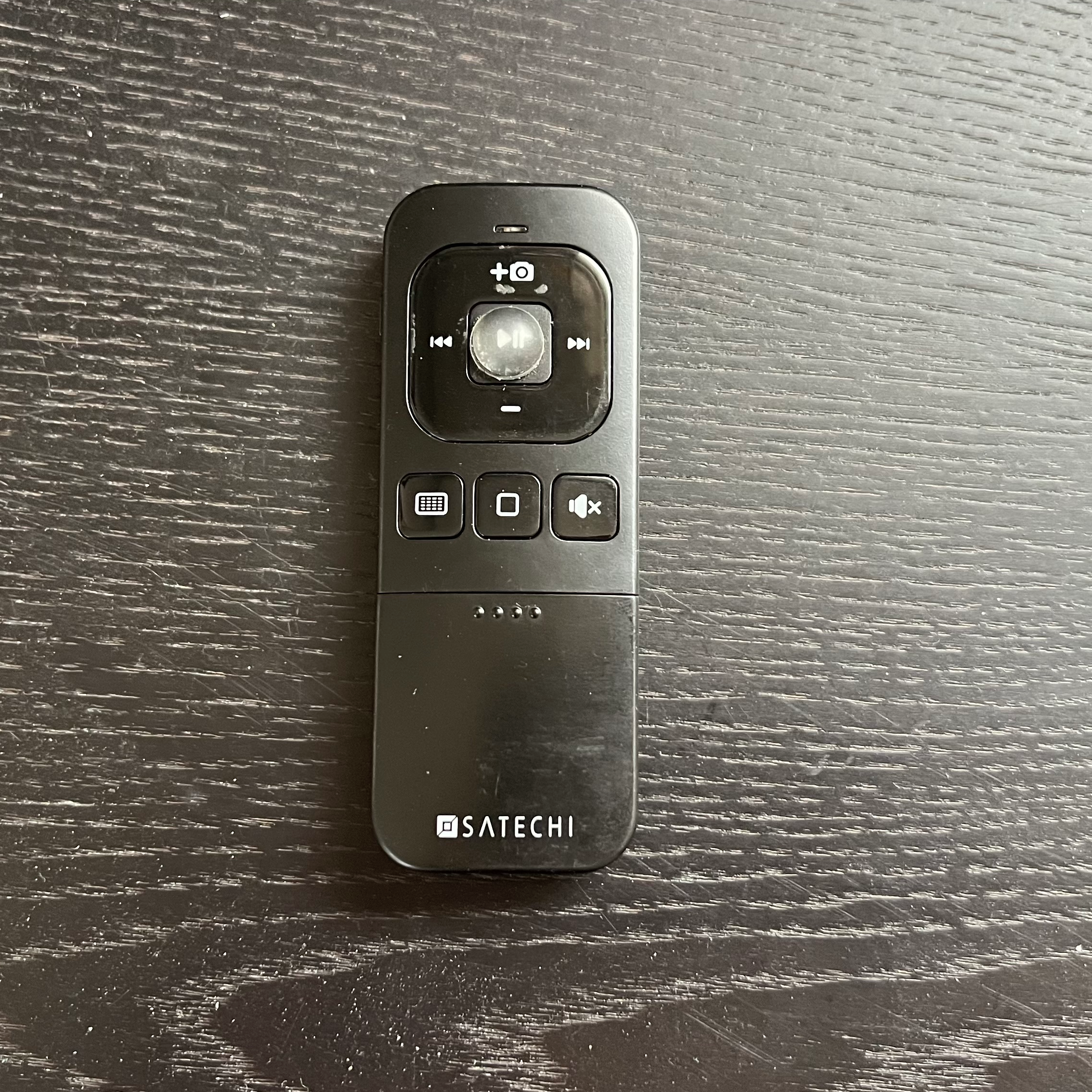 ✓ Worked in our testsSatechi Media Remotethis remote works well and can be easily configured for the appFind it on Amazon.com ↗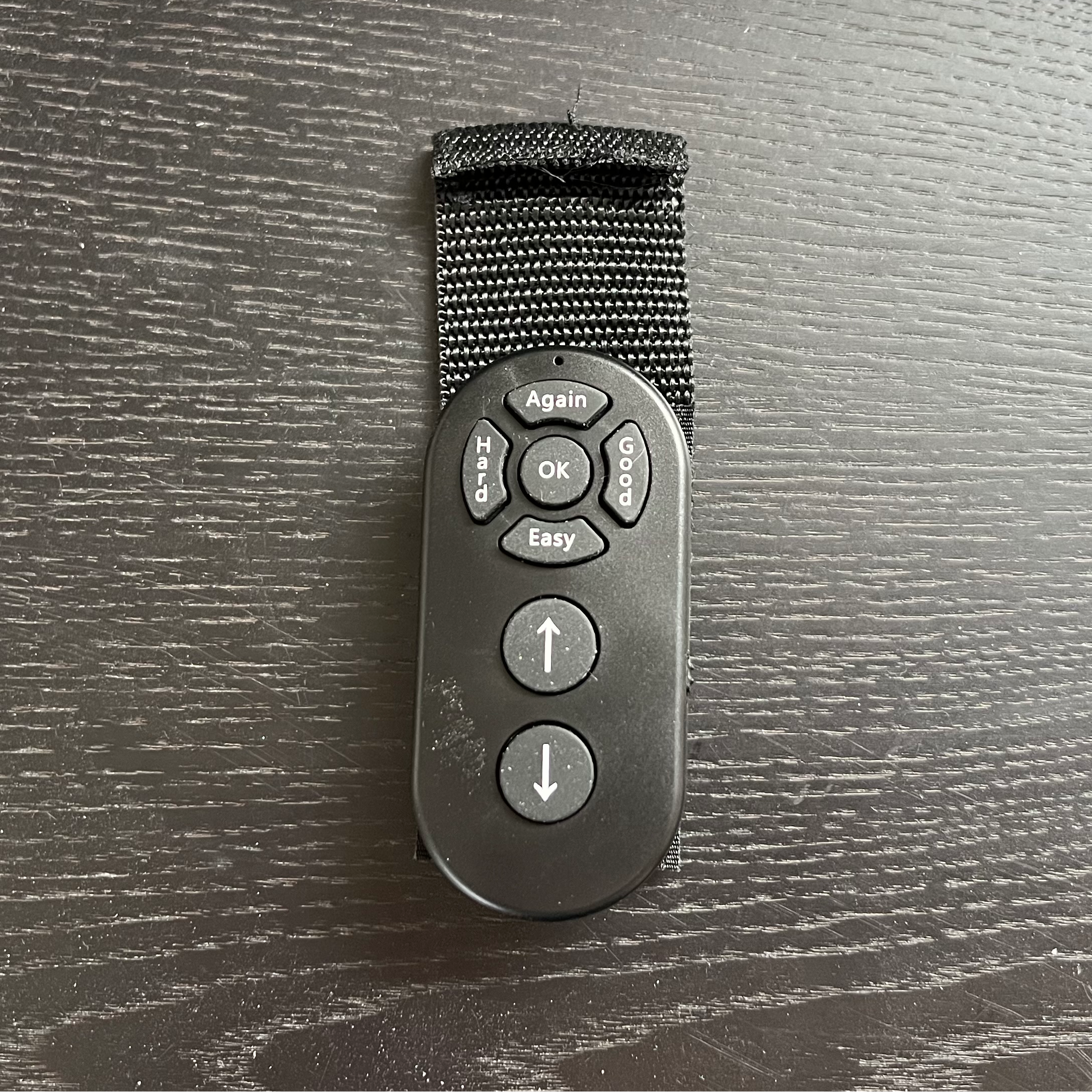
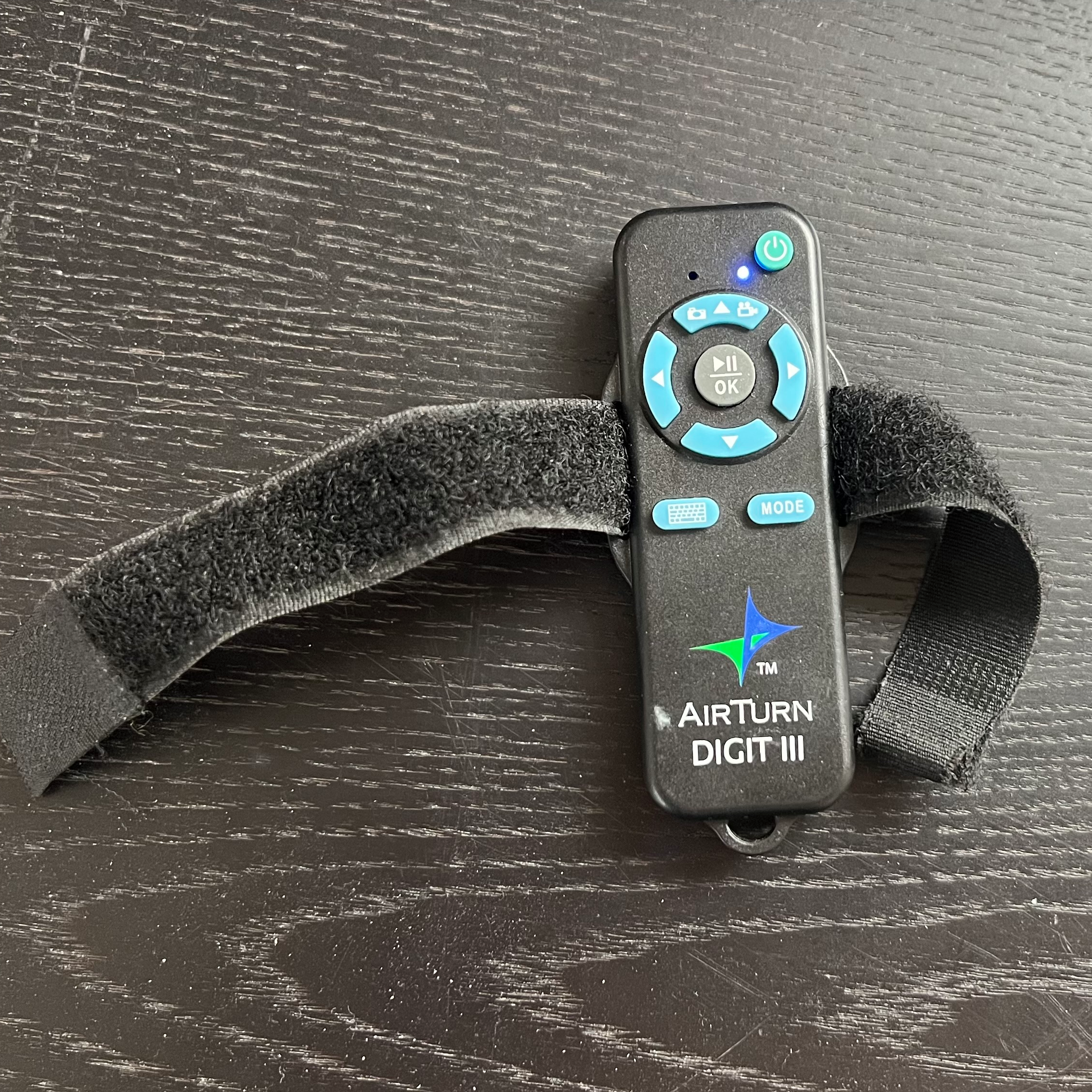 ✓ Worked in our testsAirturn Digit IIIPairs with computer and send proper keysFind it on Amazon.com ↗
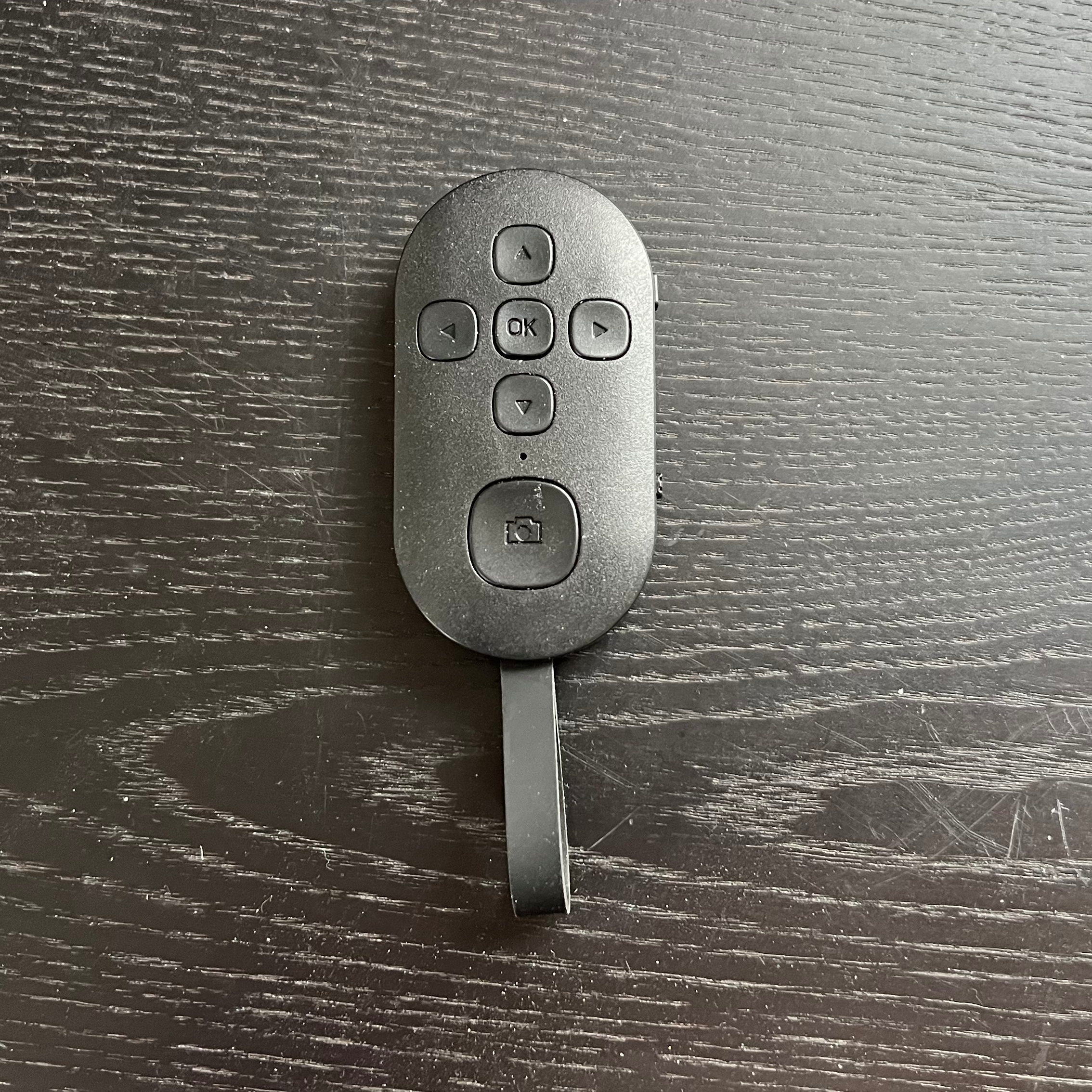 ✗ Cannot workBeauty-R1 Tiktok Scrolleronly meant for IOS devices
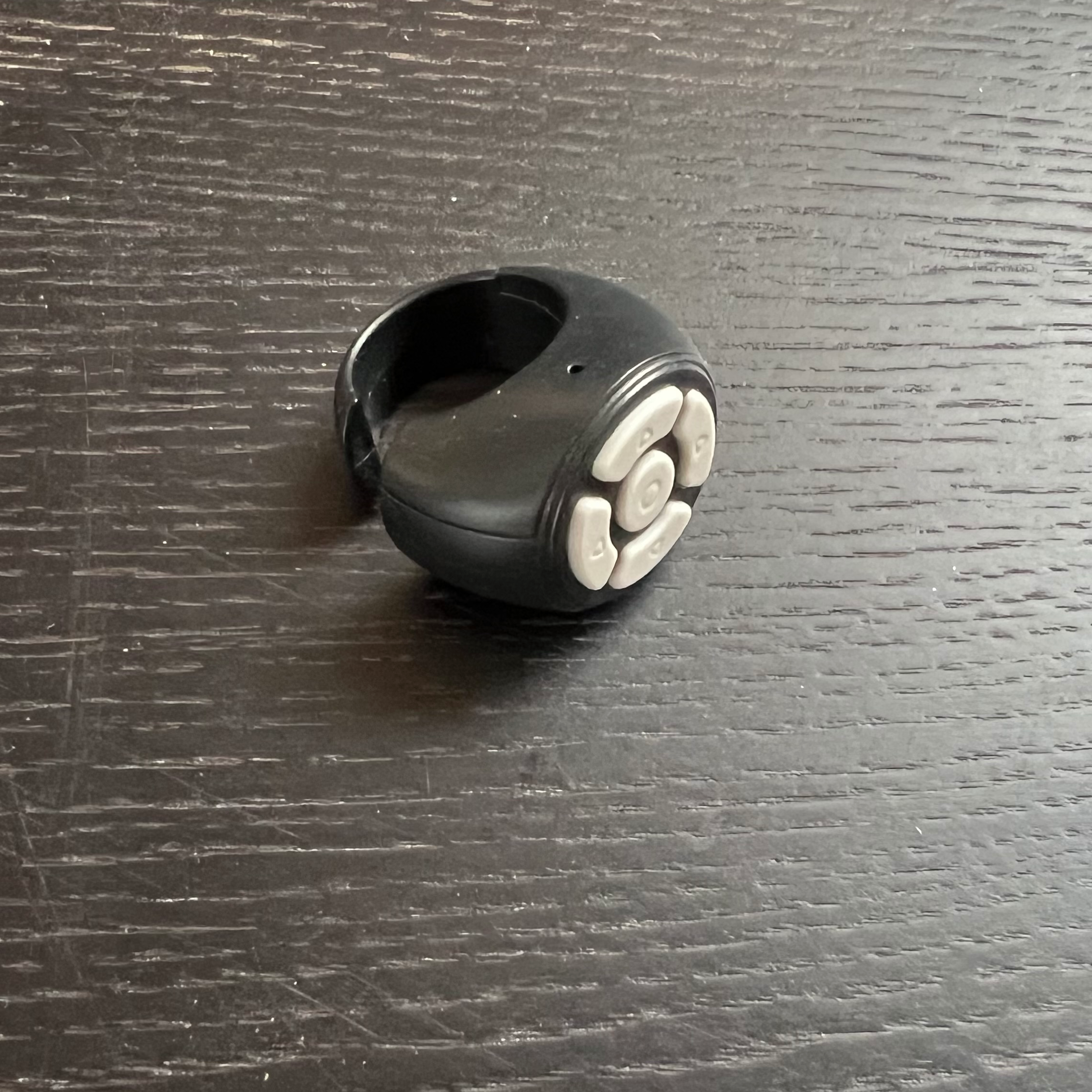 ✗ Cannot workFinger Generic Tiktok Scrollerintended for assistive touch only
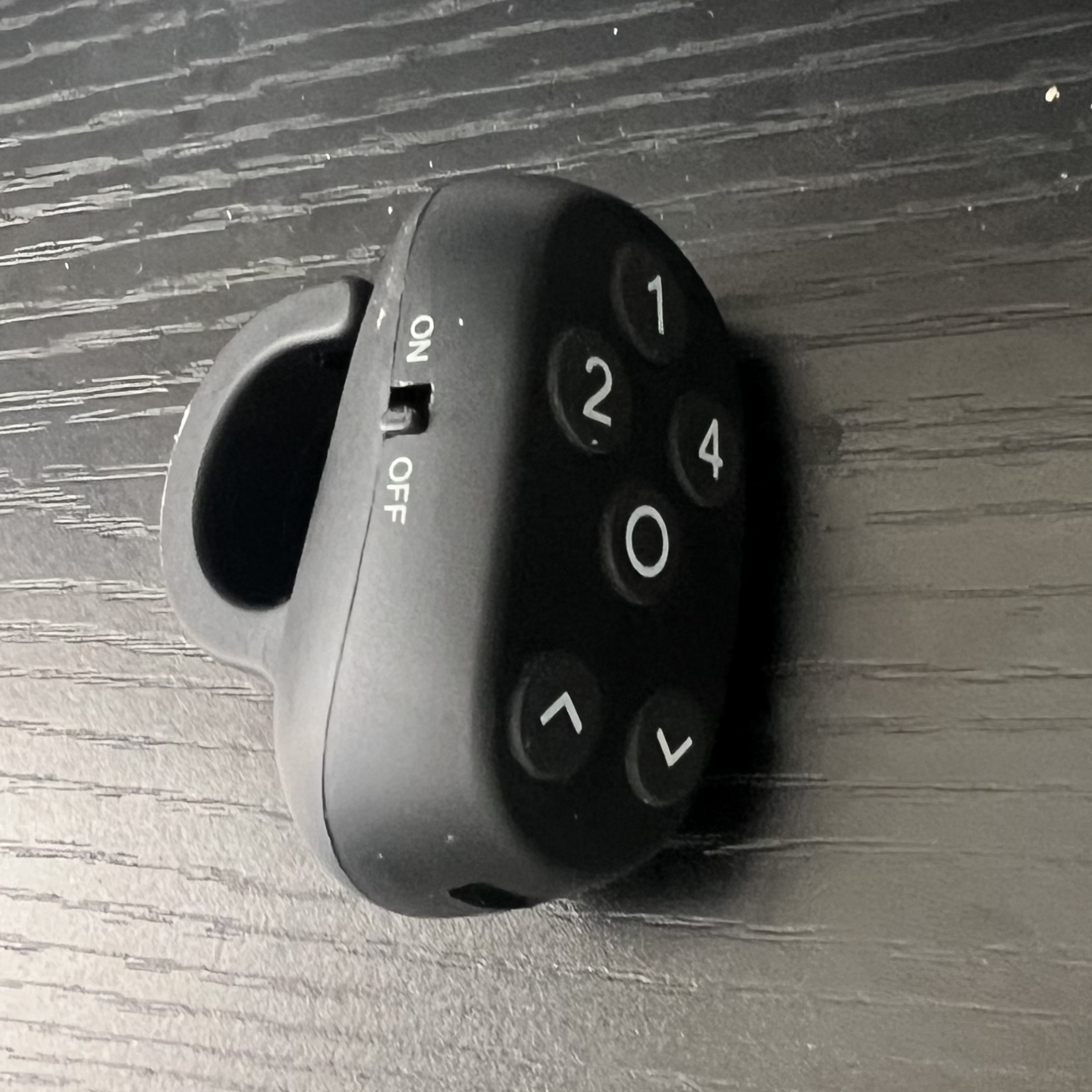 ✓ Worked in our testsAnki finger remote clickerworks and sends proper keys on press. The unit also sends number keys (1, 2, 4) which can also trigger pads, however if you do not want to use the pads can be configured for alternate use such as volume control.Find it on Amazon.com ↗
First: you do not need a remote at all
Queue Up runs entirely from the keyboard, and always has. Space plays and stops. The arrow keys move the cursor down the running order. Esc stops, the number keys fire the pads. Nothing is missing and no feature is held back — the whole show can be driven from the computer in front of you, with no extra hardware bought, paired or charged.
And the keys are yours to set — every action can be taught whatever key you would rather it answered to, on the same screen that learns a remote. A remote is an upgrade: it buys you distance from the machine, which matters only if you work away from it. Run a show on the keyboard before you spend anything on this page.
✓ These work
- Bluetooth media remotes — play/pause, next, previous, stop. The best choice: these reach the app even when its window is behind something else.
- Presentation clickers and page turners — they send the arrow keys, which is exactly what moves the cursor down a running order.
- Bluetooth foot pedals (sold for sheet music) — hands-free, and they send ordinary keys. Usually you can choose which.
- Bluetooth numeric keypads — the best pad controller there is, and it needs no setup at all.
- Any spare keyboard, wired or wireless, and the computer’s own.
- Game controllers and USB foot switches — if they present as a keyboard. Many do; some need their own software to map buttons to keys first.
✗ These will not work
- Anything that only sends volume up and down. macOS and Windows take those keys before any application sees them, so no software can capture them. This is the single most common disappointment, and it is what catches out the tiny fobs.
- Anything needing the maker’s own phone app. A private Bluetooth protocol, not key presses — there is nothing to hear.
- Infrared remotes on their own — a TV, projector or camera handset. No computer has an infrared receiver. (One sold with its own USB receiver does work — see below.)
- Phone-as-a-remote apps needing companion software or a network connection. Queue Up makes no network calls at all, by design.
- Remotes that will not pair with a computer. If your Bluetooth list cannot see it, no setting here changes that.
The five-second test: pair it, open Settings ▸ Remote control, press a button. A code under Last key received means it works; nothing means no application on your computer can see it.
Two cases worth checking
Most remotes fall cleanly into one of the lists above. These two do not, and both are common. In each case one check settles it.
“Windows Media” and Media Center remotes
The black infrared handsets sold as MCE remotes, often cheap second-hand. One question settles it: does it come with its own small USB infrared receiver? With the receiver it behaves as a media remote and reaches the app even when the window is behind something else. Without one there is nothing for it to talk to, and nothing will change that.
More about these
- The receiver is the whole difference. The dongle presents itself as an ordinary keyboard and media-key device, so no pairing is needed and no battery in it goes flat.
- It is a Windows answer, not a Mac one. These receivers are built around Microsoft’s own driver; a Mac often will not recognize one, and we would not build a show on it.
- Infrared needs line of sight. A receiver pointing at a wall is not a protocol failure. Bluetooth does not care where you stand.
- Not the phone app of the same name. A “Windows Media Player remote” app is a network remote needing companion software, and Queue Up makes no network connections.
Cheap fobs: shutter buttons and “TikTok scrollers”
Tiny, cheap, and small enough to hide in a palm — which is exactly what a magician or a ventriloquist wants. Some are perfect for this and some cannot work at all, and the listing usually does not tell you which. Look for “arrow keys”, “page up / page down” or “Enter”; be wary of one that only mentions volume, shutter or camera. If it has an iOS / Android switch, try both modes before judging it — they send different codes.
Why the modes differ, and how to test one
- iOS mode usually sends volume keys, because that is how an iPhone fires its shutter — the one thing macOS and Windows keep for themselves. Android mode usually sends Enter or media keys, which the app can hear.
- So one fob can be useless in one mode and perfect in the other. This is the commonest reason a remote is returned as broken when it was not.
- Choose the mode by what appears under Last key received, not by which computer you own. Switching modes usually means pairing again, so forget the device first.
- If neither mode produces a code, it is volume-only — return it, there is no third setting. A fob sold “for iPhone” may also refuse to pair with a computer at all.
- Buy where returns are easy, test it the day it arrives, and do not make a show depend on one you have not tested. At that price it is a fair gamble — just go in knowing it is one.
The categories below are not about whether a remote works — nearly all of them do. They are about where it works: whether it can still reach the app when the Queue Up window is behind something else.
| Category | What it is | What it sends | Window in front | Window behind |
|---|---|---|---|---|
| A. Keyboard remotes Works | Presentation clickers, page turners, foot pedals, numeric keypads, and the shutter fobs that send real keys. | Ordinary key codes — arrows, Page Up/Down, Enter, Space. | Yes | No — keystrokes go to whichever window is in front |
| B. Media remotes Best | Car-style media remotes, media-key fobs, headphone button remotes. | Play/Pause, Next Track, Previous Track, Stop. | Yes | Yes — the operating system delivers these to the app regardless |
| V. Volume-only remotes Will not work | Many tiny shutter fobs and “TikTok scrollers”, and some headphone remotes. | Volume Up / Volume Down only — which the operating system keeps for itself. | No | No |
| C. App-only remotes Will not work | Anything that needs the manufacturer’s own phone app to do anything. | Nothing standard — a private Bluetooth protocol. | No | No |
If you do want to buy one
Only worth reading if you have nothing suitable already — check your bag first, because a presentation clicker works perfectly. Kinds of thing, not sponsored placements, and mostly searches rather than one product, because these get rebadged constantly. The specific remotes we have tried are in the row at the top and are not repeated here.
Presentation clicker / page turner
Cheap, everywhere, and it sends the arrow keys — which is exactly what moves the cursor up and down the running order. Teach the app whichever buttons it has using Learn.
Watch out
Only works while the Queue Up window has focus. That is fine if the computer is doing nothing else, which on a show night it usually is not.
Camera shutter remote / “TikTok scroller” (the tiny cheap ones)
Small enough to hide in a palm, which is exactly what a magician or a ventriloquist wants, and they cost very little. When you get a good one it is the most discreet remote you can carry.
Watch out
A gamble, and worth understanding before you buy. These are sold for scrolling social media one-handed, and makers achieve that in two different ways: some send arrow keys, Page Up/Down or Enter — those work perfectly here — and some send Volume Up/Down, which macOS and Windows swallow before any application sees them and which therefore cannot work at all. Two identical-looking fobs can differ and the listing usually does not say. Look for "arrow keys", "page up/down" or "Enter"; be wary of one that only mentions volume or shutter. Many have an iOS/Android mode switch and the two modes send different codes, so try both in Settings ▸ Remote control before deciding it is a dud. Buy where returns are easy and test it the day it arrives.
Bluetooth page-turner foot pedal
Hands-free. Made for sheet music, works perfectly for cues: one pedal to play, one to move down the list. If both your hands are holding a puppet, a deck or a rope, this is the answer.
Watch out
Same focus rule as a clicker — the app window has to be in front. Most pedals let you choose which key each switch sends; arrows and Space are the useful ones.
Bluetooth numeric keypad
The best pad controller there is, and it needs no setup at all — the computer already thinks it is a keyboard. The number keys fire pads 1 to 10 of the bank on screen. Pair it with a remote in your pocket and you have a two-person rig: performer on the remote, operator on the pads.
Watch out
Get one with proper travel if it is going to be pressed in the dark. Number keys only reach the app while its window has focus.
USB audio interface
Turns a headphone socket into a proper balanced output for the venue’s desk. Queue Up plays through whatever your operating system is set to use, so anything the computer can see will work with no configuration.
Watch out
Two outputs is plenty. You do not need mic preamps for playback, although they are hard to avoid at this price.
Stereo DI box (3.5mm to XLR)
The cheapest reliable way to hand a sound engineer two XLRs instead of an apologetic mini-jack. Kills hum from a charging laptop, too.
Watch out
A passive stereo DI is fine for playback. Take a spare 3.5mm cable — that is the part that fails.
Disclosure. These are Amazon affiliate links. If you buy through one, we may earn a small commission at no extra cost to you — as an Amazon Associate we earn from qualifying purchases. It does not change what we recommend: the categories above come from how the operating system handles input, not from what pays.
Some units are supplied free by their seller for testing — we ask for them, a little further down this page. Nobody pays for a place among the remotes we have tried, a free unit does not buy a good write-up, and a remote that turns out not to work is published saying so.
Sell remotes? Send us one.
Send us a unit and we will pair it, press every button, and publish what it actually sends — including if the answer is that it sends volume keys and cannot work. Please provide a link to your product and we will reply with a shipping address.
What we will do: pair it, press every button, write down the code each one sends, and publish the result on this page with a photograph of the actual unit — including how it behaves when the app is behind another window, which is the thing buyers cannot find out from a listing.
What we will not do: promise a favorable write-up, take payment for a place on the list, or quietly drop a bad result. If it only sends volume keys we will say so, because that is the whole point of the page. Anything sent is kept for testing and not returned unless you ask and cover the postage.
Email support@quppro.com first, with what it sends if you know — we will reply with where to post it.
Teaching the app your buttons
Learning adds a key — it never removes the keyboard shortcuts. Space, Esc and the arrows keep working exactly as they did, and your remote button simply joins them.